

What Is a Percentage Change Calculator?
This calculator finds the percentage change between two values, that is, how much an old (initial) value has changed, in percent, to become a new (final) value.
- If the new value is bigger than the old value, the result is positive and it is called an increase.
- If the new value is smaller, the result is negative and it is called a decrease.
Simple example: if your rent goes from $1,000 to $1,100, that is a 10% increase.
When to use it: use this calculator when the order of the values matters, that is, when you have an old value and a new value. If you need to find a percentage of a number rather than the change between two values, use our percentage calculator.
How to Use the Percentage Change Calculator
- Choose a tab. The calculator has three tabs: % Change, Apply a Change, and Reverse a Change. The default is % Change.
- Enter the old value (V1) and the new value (V2). The result appears as you type, or you can click Calculate or press Enter. Use a dot for decimals (3.85). Commas are treated as thousands separators (1,250).
What Can You Enter?
- Whole numbers (like 260)
- Decimal numbers (like 3.85)
- Negative numbers (such as −50)
- Time values in these formats:
- Enter times as mm:ss (for example 25:30) or
- hh:mm:ss (for example 1:30:00). A two-part time such as 25:30 is read as minutes and seconds. Time values work only in the % Change tab.
Note: enter the same type of value in both boxes, either two numbers or two times. You cannot mix a number and a time. Fractions such as 3/4 are not accepted. Convert them first with our fraction to percent calculator.
Decimal places: choose from 0 to 6 decimal places. The default is 2.
What You See in the Results
- The percentage change with its sign, such as +24% or −19.35%.
- A one-line summary, such as "Going from 250 to 310 is a 24% increase."
- Change (V2 − V1): the exact difference between the two values.
- Direction: Increase ▲, Decrease ▼, or No change.
- Step-by-step working: every calculation step, shown with your own numbers.
Percentage Change Formula
Percentage change = (V2 − V1) ÷ |V1| × 100
Here:
- V1 = Old value
- V2 = New value
- ΔV = V2 − V1 = the change in value
- |V1| = absolute value of V1
Absolute value (|x|) means a number without its minus sign, that is, its distance from zero.
- |3.5| = 3.5
- |−3.5| = 3.5
How the Formula Works
- Subtract the old value from the new value (V2 − V1).
- Divide the result by the absolute value of the old value.
- Multiply the answer by 100.
What Is the Base?
Every percentage is a percentage of something. That something is called the base. In percentage change, the base is always the old value (V1). Many percentage mistakes come from choosing the wrong base.
Percentage Change Examples
Example 1: Price Increase (Monthly Internet Bill)
Your monthly internet bill goes from $70 to $84. What is the percentage change?
- V1 = 70, V2 = 84.
- 84 − 70 = 14.
- 14 ÷ |70| = 0.2.
- 0.2 × 100 = 20%.
The result is positive, so the bill increased by 20%.
What Happens If the Order Changes
Now suppose the bill goes from $84 back to $70.
- V1 = 84, V2 = 70
- Step 1: 70 − 84 = −14
- Step 2: −14 ÷ |84| = −0.16667
- Step 3: −0.16667 × 100 = −16.67%
- The result is negative, so the bill decreased by 16.67%.
The difference is $14 both times, but the percentages differ (20% and 16.67%) because the base changes from 70 to 84. That is why V1 must be the value that came first.
Example 2: Decimal Values (Gas Price)
The price of gas falls from $4.80 to $3.60 per gallon. What is the percentage change?
- V1 = 4.80, V2 = 3.60
- Step 1: 3.60 − 4.80 = −1.20
- Step 2: −1.20 ÷ |4.80| = −0.25
- Step 3: −0.25 × 100 = −25%
The result is negative, so the price fell by 25%.
Example 3: Negative Numbers (Net Income)
A company's net income changes from −$18,000 (a loss) to −$27,000 (a bigger loss). What is the percentage change?
- V1 = −18, V2 = −27 (in thousands of dollars)
- Step 1: −27 − (−18) = −9
- Step 2: −9 ÷ |−18| = −9 ÷ 18 = −0.5
- Step 3: −0.5 × 100 = −50%
Result: a 50% decrease in net income. In everyday language the loss grew by 50%, but the number went down, so the change is negative.
Here is how the calculator shows Example 3 when you enter the full amounts:
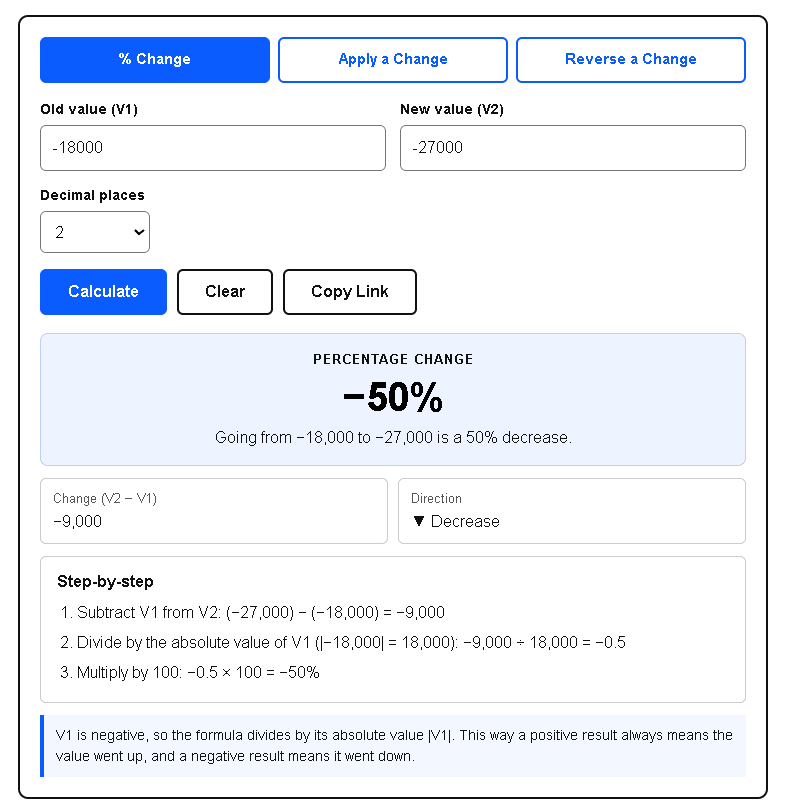
| What the calculator shows | What it means |
| −50% | The change is negative, so the value went down |
| "Going from −18,000 to −27,000 is a 50% decrease." | The plain-language summary |
| Change (V2 − V1): −9,000 | The raw difference |
| Direction: ▼ Decrease | The direction flag |
| Step 1: (−27,000) − (−18,000) = −9,000 | Negative numbers are shown in parentheses |
| Step 2: divide by the absolute value of V1 ( | −18,000 |
| Step 3: −0.5 × 100 = −50% | The final result |
| Note: "V1 is negative, so the formula divides by its absolute value | V1 |
Example 4: Percentage Change Between Two Times
A runner's 5K time drops from 30:00 to 27:00 (mm:ss). What is the percentage change?
The calculator converts both times to seconds: 30:00 = 1,800 s and 27:00 = 1,620 s.
- 1,620 s − 1,800 s = −180 s
- −180 s ÷ 1,800 s = −0.1
- −0.1 × 100 = −10%
Result: a 10% decrease in time, which means the runner is faster.
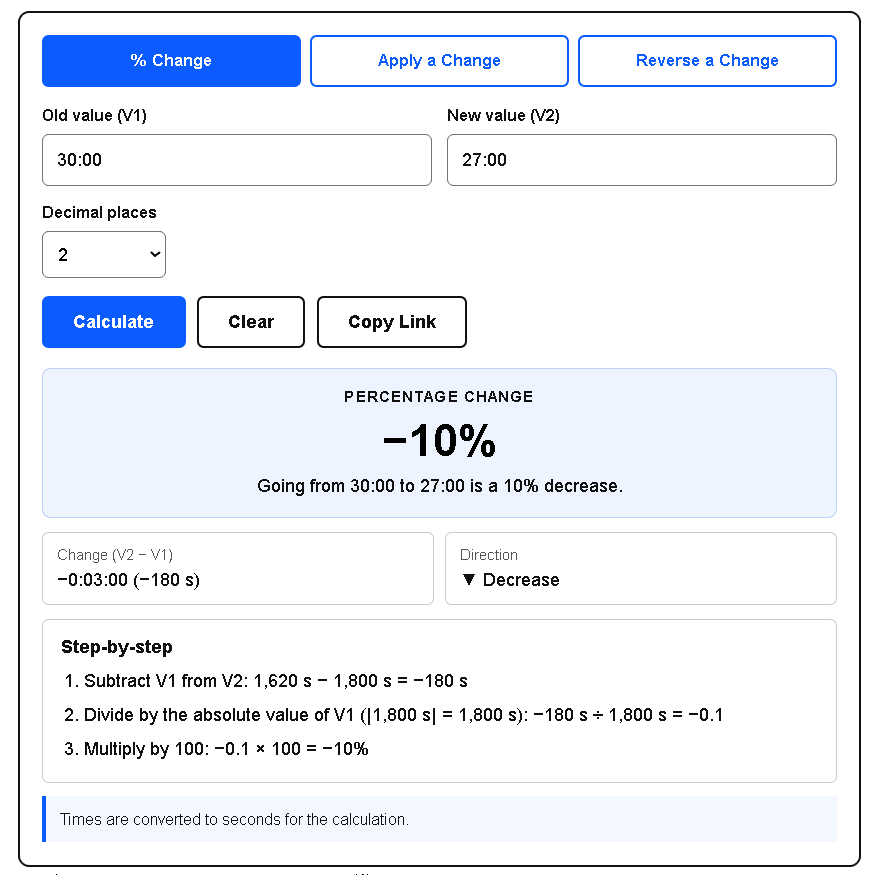
| What the calculator shows | What it means |
| −10% | Percentage change |
| "Going from 30:00 to 27:00 is a 10% decrease." | Your times are shown as you typed them |
| Change (V2 − V1): −0:03:00 (−180 s) | Three minutes shorter, also shown in seconds |
| Direction: ▼ Decrease | The direction flag |
| Step 1: 1,620 − 1,800 = −180 | Steps are in seconds |
| Note: "Times are converted to seconds for the calculation." | Explains why steps s |
Common Mistake With Negative Numbers
When V1 is negative, people often forget to remove the minus sign from the denominator, and the answer gets the wrong sign.
Example 3 (net income)
- Correct method: −9 ÷ 18 = −0.5, means −50% ✅
- Wrong method: −9 ÷ (−18) = +0.5, means +50% ❌
The wrong method suggests −27 is 50% higher than −18, which is clearly wrong.
Practice question: find the percentage change from −50 to −30. (Hint: the difference is +20 and the denominator is 50. Check it in the calculator.) Answer: +40%.
What If the Old Value Is 0?
If the old value (V1) is 0, the percentage change is undefined, because the formula divides by V1 and division by zero is not possible. In this case the calculator asks you to enter an old value other than 0.
How to Use the "Apply a Change" Tab
In this tab you enter a starting value and a percentage, and the calculator shows the new value after an increase or decrease. It is useful for finding discounts, sales tax, or tips.
- Click the "Apply a Change" tab and enter your starting value (for example, 200).
- Enter the percentage (for example, 15). Always enter the percentage as a positive number. If you enter a minus sign, the calculator asks you to use the Increase / Decrease menu instead.
- Select Increase (+) or Decrease (−) under "Type of change."
Apply a Change Formula:
New value = Starting value × (1 ± percentage ÷ 100)
- Increase multiplier = 1 + (percentage ÷ 100)
- Decrease multiplier = 1 − (percentage ÷ 100)
The calculator shows three steps:
- Convert percentage to a decimal (percentage ÷ 100)
- Find multiplier (1 + or 1 − decimal)
- Multiply the starting value by the multiplier.
Example 1: Restaurant Tip
Your restaurant bill is $65 and you want to leave an 18% tip. What is the total?
- 18 ÷ 100 = 0.18
- Multiplier = 1 + 0.18 = 1.18
- 65 × 1.18 = $76.70
The tip is $11.70. The calculator shows this as "Amount of change" (+11.7).
Example 2: Sale Discount
A laptop costs $1,200 and is currently 25% off. What is the final price?
- 25 ÷ 100 = 0.25
- Multiplier = 1 − 0.25 = 0.75
- 1200 × 0.75 = $900
How to Use the "Reverse a Change" Tab
Use this tab when you know the final value and want to find the value before the change, such as the original price before a discount.
- Click the "Reverse a Change" tab and enter the final value (the value after the change).
- Enter the percentage (as a positive number).
- Choose whether it was an Increase or a Decrease under "Change that was applied."
Reverse a Change Formula
Original value = Final value ÷ (1 ± percentage ÷ 100)
The most common mistake is adding or subtracting the percentage directly from the final value. The percentage was taken from the original value, so we divide by the multiplier instead.
Example 1: Price Before a Discount
You paid $84 for a jacket after a 30% discount. What was the original price?
- Multiplier = 1 − 0.30 = 0.70
- 84 ÷ 0.70 = $120.
- Wrong method: adding 30% to 84 gives 84 × 1.30 = $109.20 ❌.
- Check: 120 × 0.70 = 84 ✅.
Example 2: Rent Before an Increase
After an 8% increase, your new rent is $1,620. What was the old rent?
- Multiplier = 1 + 0.08 = 1.08
- 1620 ÷ 1.08 = $1,500
- Check: 1500 × 1.08 = 1620 ✅
What If the Decrease Is 100%?
A 100% decrease makes the multiplier 0 (1 − 1 = 0), so the original value cannot be found (division by zero). A 100% decrease always ends at 0, whatever the starting value was.
Why a Percentage Increase and Decrease Don't Cancel Out
After a 25% increase, a 25% decrease does not bring you back to the start.
- 25% increase: 100 → 125
- To get back to 100, subtract 25 from 125: 25 ÷ 125 = 20% decrease
The same happens in reverse:
- 40% decrease: 100 → 60
- To get back to 100, add 40 to 60: 40 ÷ 60 = 66.67% increase
Reason: the two percentages have different bases. In the first case, the increase is taken from 100 and the decrease from 125. In the second case, the decrease is taken from 100 and the increase from 60.
Shortcut: multiply the multipliers. A 25% increase followed by a 25% decrease is 1.25 × 0.75 = 0.9375, a net 6.25% decrease.
The Percentage Needed to Undo a Change
To undo an increase of p, decrease by p ÷ (1 + p). To undo a decrease of p, increase by p ÷ (1 − p) (p as a decimal).
| If a value went… | It must… to get back |
| Up 10% | Fall 9.09% |
| Up 20% | Fall 16.67% |
| Up 25% | Fall 20% |
| Up 50% | Fall 33.33% |
| Up 100% | Fall 50% |
| Down 10% | Rise 11.11% |
| Down 20% | Rise 25% |
| Down 25% | Rise 33.33% |
| Down 50% | Rise 100% |
| Down 75% | Rise 300% |
What Does a Change of More Than 100% Mean?
The increase can be more than 100%. It means the value becomes more than double.
- Example: 40 to 90. The difference is 50, and 50 ÷ 40 = 1.25, which is a 125% increase.
A decrease normally cannot go past 100%, because you cannot lose more than all of something. The exception is when the value becomes negative. For example, going from 80 to −16 is a 120% decrease.
When Percentage Change Can Be Misleading
- Small starting numbers. Going from $2 to $10 is a 400% increase, but only an $8 change. Always check the absolute change too.
- Negative starting values. Dividing by |V1| is a convention that makes the sign show the direction correctly, but the size of the percentage can be hard to interpret. Some analysts report the absolute change instead.
- A starting value of 0. The percentage change is undefined (see above).
Where Is Percentage Change Used?
- Salary: a raise from $52,000 to $55,120 is a 6% increase.
- Investing: a stock bought at $45 and sold at $58.50 is a 30% gain.
- Grades: a test score going from 68 to 85 is a 25% improvement.
- Inflation: a grocery basket costing $156 now versus $150 a year ago is a 4% increase.
- Business: quarterly revenue falling from $480,000 to $420,000 is a 12.5% decline.
- Fitness: body weight going from 200 lb to 182 lb is a 9% decrease.
- Chemistry and physics: a solution's concentration going from 0.50 M to 0.40 M is a 20% decrease.
- Tax and tip: use the Apply a Change tab.
- Population: a town growing from 84,000 people in 2015 to 91,560 in 2025 grew by 9% over ten years.
- Grades: To average several scores, use our average percentage calculator.
Frequently Asked Questions
Q1. What is the difference between percentage change and percentage difference?
Percentage change uses the old value as the base and has a direction (increase or decrease). Percentage difference divides by the average of the two values, is always positive, and does not depend on order. Example with 40 and 60: from 40 to 60, the change is 20 ÷ 40 = 50%, but the difference is 20 ÷ 50 = 40%. Use change for before-and-after data and difference for two independent readings. You can also find the percentage difference between two numbers with our percentage calculator.
Q2. What is the difference between percent change and percentage points?
Percentage points compare two percentages by simple subtraction. Percent change compares them relative to the starting rate. A savings rate going from 4% to 5% is a 1 percentage point increase, but a 25% increase in the rate itself (1 ÷ 4).
Q3. How do I calculate percentage change in Excel or Google Sheets?
If the old value is in A2 and the new value in B2, use =(B2-A2)/ABS(A2) and format the cell as a percentage. To avoid a #DIV/0! error when A2 is 0, use =IF(A2=0,"",(B2-A2)/ABS(A2)).
Q4. How do I find the average percentage change per year?
Percentage change gives the total change, not the yearly rate. For a yearly rate, use the compound annual growth rate: (final ÷ initial)^(1 ÷ years) − 1. A town that grew 9% over ten years grew about 0.87% per year, not 0.9% and not 9%.
Q5. How is inflation calculated?
The inflation rate is the percentage change in a price index, such as the Consumer Price Index (CPI), between two dates. If a hypothetical index goes from 300.0 to 309.0, inflation is 9 ÷ 300 = 3%. In the US, the CPI is published by the Bureau of Labor Statistics.
Sources
- U.S. Bureau of Labor Statistics: Consumer Price Index (https://www.bls.gov/cpi/), Used for: how US inflation is measured as the percentage change in the Consumer Price Index (CPI).
- BLS Handbook of Methods: CPI (https://www.bls.gov/opub/hom/cpi/), Used for: how the CPI is calculated and published.
- Wikipedia: Relative change and difference (https://en.wikipedia.org/wiki/Relative_change_and_difference), Used for: the percentage change formula, the idea of a reference value (base), and how percentage change differs from percentage difference.
- Wikipedia: Percentage point (https://en.wikipedia.org/wiki/Percentage_point), Used for: the difference between percentage points and percent change.
- Math Is Fun: Percentage Change (https://www.mathsisfun.com/numbers/percentage-change.html), Used for: a beginner-friendly explanation of the formula and of increase vs decrease.
- Wikipedia: Compound annual growth rate (https://en.wikipedia.org/wiki/Compound_annual_growth_rate), used for: the formula for average yearly growth.
Last reviewed: October 1, 2026. by the VersaCalculator team.
Disclaimer:
This calculator is only for general information and educational purposes. It is not financial, investment, tax or legal advice. Before making any important decision, double-check your result and, if needed, consult a qualified professional.
Gouse Shah is the Chief Editor of VersaCalculator.com, a software engineer with over seven years of industry experience, and a dedicated student of mathematics. Based in Bengaluru, India, he leads a team of educators who research, code, test, review, and publish each calculator so users get accurate, easy-to-understand answers. He follows a standard quality-check process on all content before it is published.